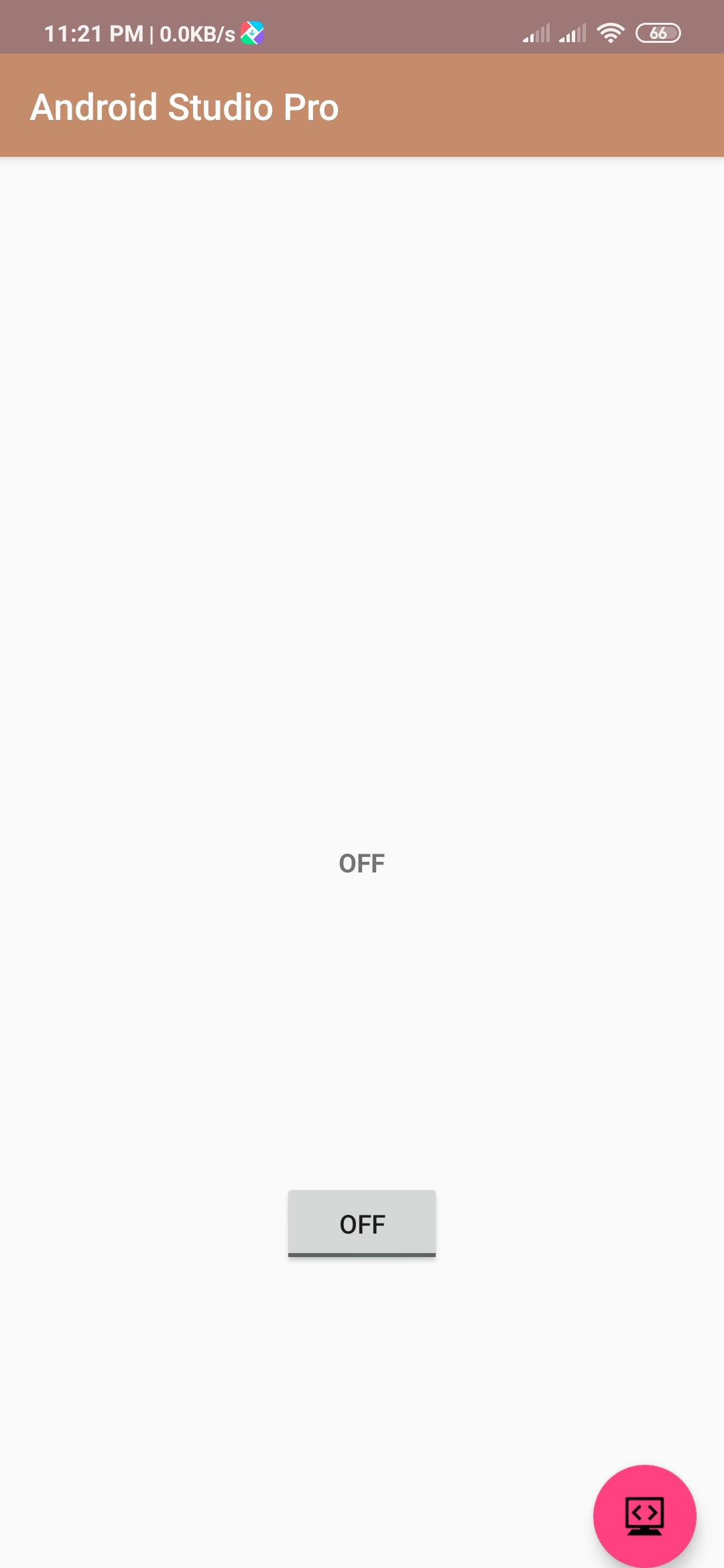
how to use toggle button in android studio
Hello Guys. Welcome to our new tutorial of how to use toggle button in android studio.toggle-button help the user to change a setting between two states. or you can use the button to display on/off state on the button.
please follow the code given below to use toggle button in android studio.
- First Create a new project in Android Studio
- File ⇒ New Android ⇒ Application Project
- Then Open src -> package -> MainActivity.java and then add following code :
JAVA (MainActivity.java)
import android.support.v7.app.AppCompatActivity;
import android.os.Bundle;
import android.view.View;
import android.widget.TextView;
import android.widget.ToggleButton;

public class ToggleActivity extends AppCompatActivity {
    ToggleButton toggleButton;
    TextView textView;

    @Override
    protected void onCreate(Bundle savedInstanceState) {
        super.onCreate(savedInstanceState);
        setContentView(R.layout.activity_toggle);

        toggleButton = (ToggleButton) findViewById(R.id.toggleButton);

        textView = (TextView) findViewById(R.id.textView);
    }
    public void onToggleClick(View view) {
        if (toggleButton.isChecked()) {
            textView.setText("ON");
        } else {
            textView.setText("OFF");
        }
    }
}

Toast.LENGTH_SHORT).show();

}

});

}
}
- Now Open res -> layout -> activity_main.xml and then add following code :
XML (activity_main.xml)
<android.support.constraint.ConstraintLayout xmlns:android="http://schemas.android.com/apk/res/android"
    xmlns:app="http://schemas.android.com/apk/res-auto"
    xmlns:tools="http://schemas.android.com/tools"
    android:layout_width="match_parent"
    android:layout_height="match_parent"
    tools:context=".ToggleActivity">


    <ToggleButton
        android:id="@+id/toggleButton"
        android:layout_width="wrap_content"
        android:layout_height="wrap_content"
        android:layout_centerHorizontal="true"
        android:layout_centerVertical="true"
        android:onClick="onToggleClick"
        app:layout_constraintBottom_toBottomOf="parent"
        app:layout_constraintEnd_toEndOf="parent"
        app:layout_constraintStart_toStartOf="parent"
        app:layout_constraintTop_toBottomOf="@+id/textView" />

    <TextView
        android:id="@+id/textView"
        android:layout_width="wrap_content"
        android:layout_height="wrap_content"
        android:layout_above="@+id/toggleButton"
        android:layout_centerHorizontal="true"
        android:layout_centerVertical="true"
        android:textStyle="bold"
        app:layout_constraintBottom_toBottomOf="parent"
        app:layout_constraintEnd_toEndOf="parent"
        app:layout_constraintStart_toStartOf="parent"
        app:layout_constraintTop_toTopOf="parent" />


</android.support.constraint.ConstraintLayout>
Output:
Finally, run this project.
This is how Toggle Button look like.