how to convert text to speech in android studio
Hello Guys. Welcome to our new tutorial of convert text to speech in android studio. by using TexToSpeech class you can convert your text into speech. In this example, we are going to see the android texttospeech example. please follow the code given below to display to convert text to speech in android studio.
- First Create a new project in Android Studio
- File ⇒ New Android ⇒ Application Project
- Then Open src -> package -> MainActivity.java and then add following code :
JAVA (MainActivity.java)
import android.speech.tts.TextToSpeech;
import android.support.v7.app.AppCompatActivity;
import android.os.Bundle;
import android.view.View;
import android.widget.EditText;
import android.widget.ImageButton;
import android.widget.Toast;

import java.util.Locale;

public class Texttospeechs extends AppCompatActivity {

    TextToSpeech t1;
    EditText write;
    ImageButton speakbtn;


    @Override
    protected void onCreate(Bundle savedInstanceState) {
        super.onCreate(savedInstanceState);
        setContentView(R.layout.activity_texttospeechs);


        write=(EditText) findViewById(R.id.editText);
        speakbtn=(ImageButton)findViewById(R.id.board);

        t1=new TextToSpeech(getApplicationContext(), new TextToSpeech.OnInitListener() {
            @Override
            public void onInit(int status) {
                if (status != TextToSpeech.ERROR) {
                    t1.setLanguage(Locale.UK);
                }
            }
        });
        speakbtn.setOnClickListener(new View.OnClickListener() {
            @Override
            public void onClick(View v) {
                String toSpeak = write.getText().toString();
                Toast.makeText(getApplicationContext(), toSpeak, Toast.LENGTH_SHORT).show();
                t1.speak(toSpeak, TextToSpeech.QUEUE_FLUSH, null);
            }
        });

    }
    @Override
    public void onDestroy() {
        // Don't forget to shutdown tts!
        if (t1 != null) {
            t1.stop();
            t1.shutdown();
        }
        super.onDestroy();
    }
}
- Now Open res -> layout -> activity_main.xml and then add following code :
XML (activity_main.xml)
<android.support.constraint.ConstraintLayout
    xmlns:android="http://schemas.android.com/apk/res/android"
    xmlns:app="http://schemas.android.com/apk/res-auto"
    xmlns:tools="http://schemas.android.com/tools"
    android:orientation="vertical"
    android:gravity="center"
    android:background="#A7A0A0"
    tools:context=".Texttospeechs"

    android:padding="10dp"
    android:layout_width="match_parent"
    android:layout_height="match_parent">

    <EditText
        android:id="@+id/editText"
        android:layout_width="match_parent"
        android:layout_height="wrap_content"
        android:layout_marginTop="300dp"
        android:background="#ffffff"
        android:hint="Write your text here :"
        android:inputType="textMultiLine"
        android:maxHeight="140dp"
        android:padding="8dp"
        android:scrollbars="vertical"
        app:layout_constraintBottom_toTopOf="@+id/board"
        app:layout_constraintEnd_toEndOf="parent"
        app:layout_constraintStart_toStartOf="parent"
        app:layout_constraintTop_toTopOf="parent"
        app:layout_constraintVertical_bias="0.848" />

    <ImageButton
        android:id="@+id/board"
        android:layout_width="90dp"
        android:layout_height="60dp"
        android:layout_gravity="end"
        android:layout_marginBottom="292dp"
        android:background="@drawable/speaker"
        android:scaleType="fitXY"
        android:shadowRadius="5"
        app:layout_constraintBottom_toBottomOf="parent"
        app:layout_constraintEnd_toEndOf="parent"
        app:layout_constraintHorizontal_bias="0.498"
        app:layout_constraintStart_toStartOf="parent"
        app:layout_constraintTop_toBottomOf="@+id/editText"
        app:srcCompat="@drawable/speaker" />
    </android.support.constraint.ConstraintLayout>
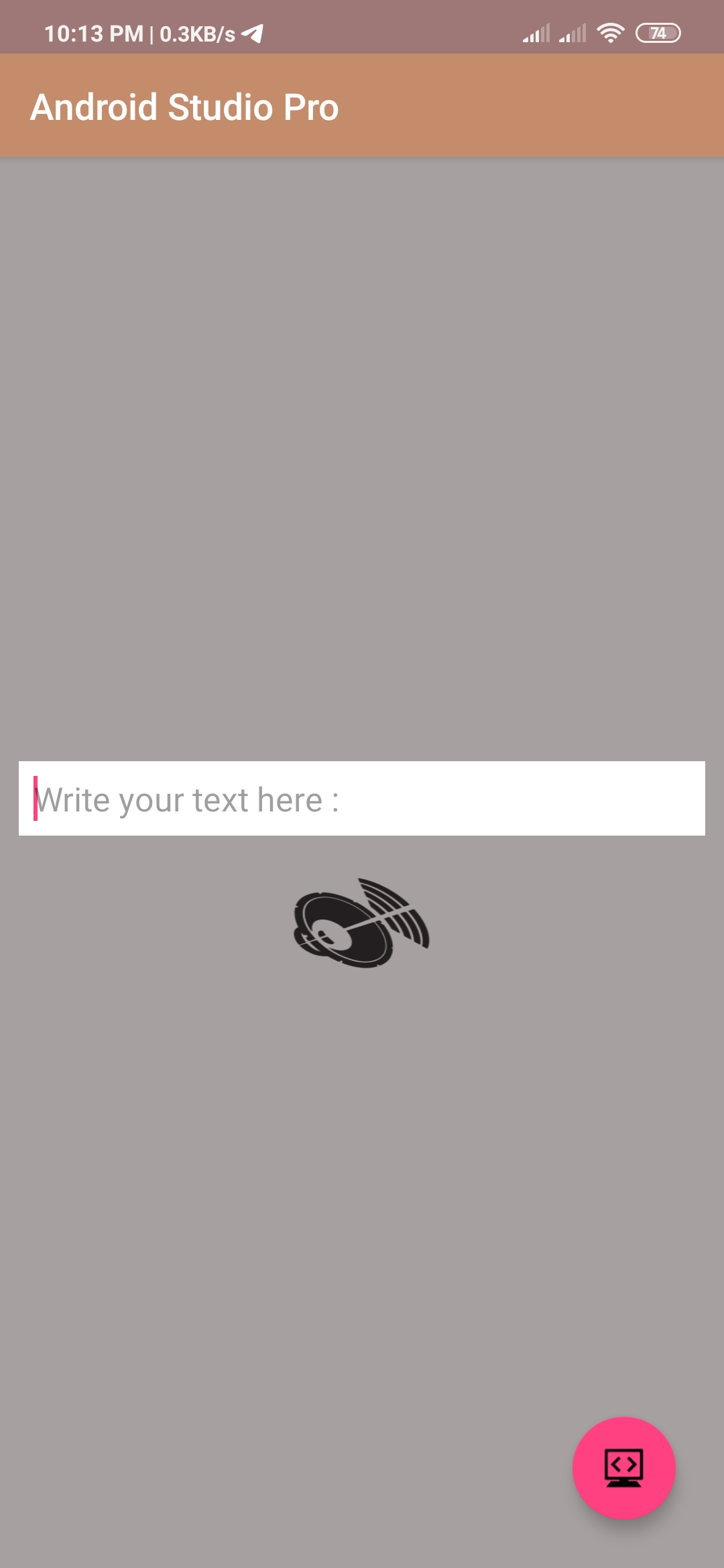
Output:
Finally, run this project.
This is how text to speech looks like.
