speech to text in android studio example
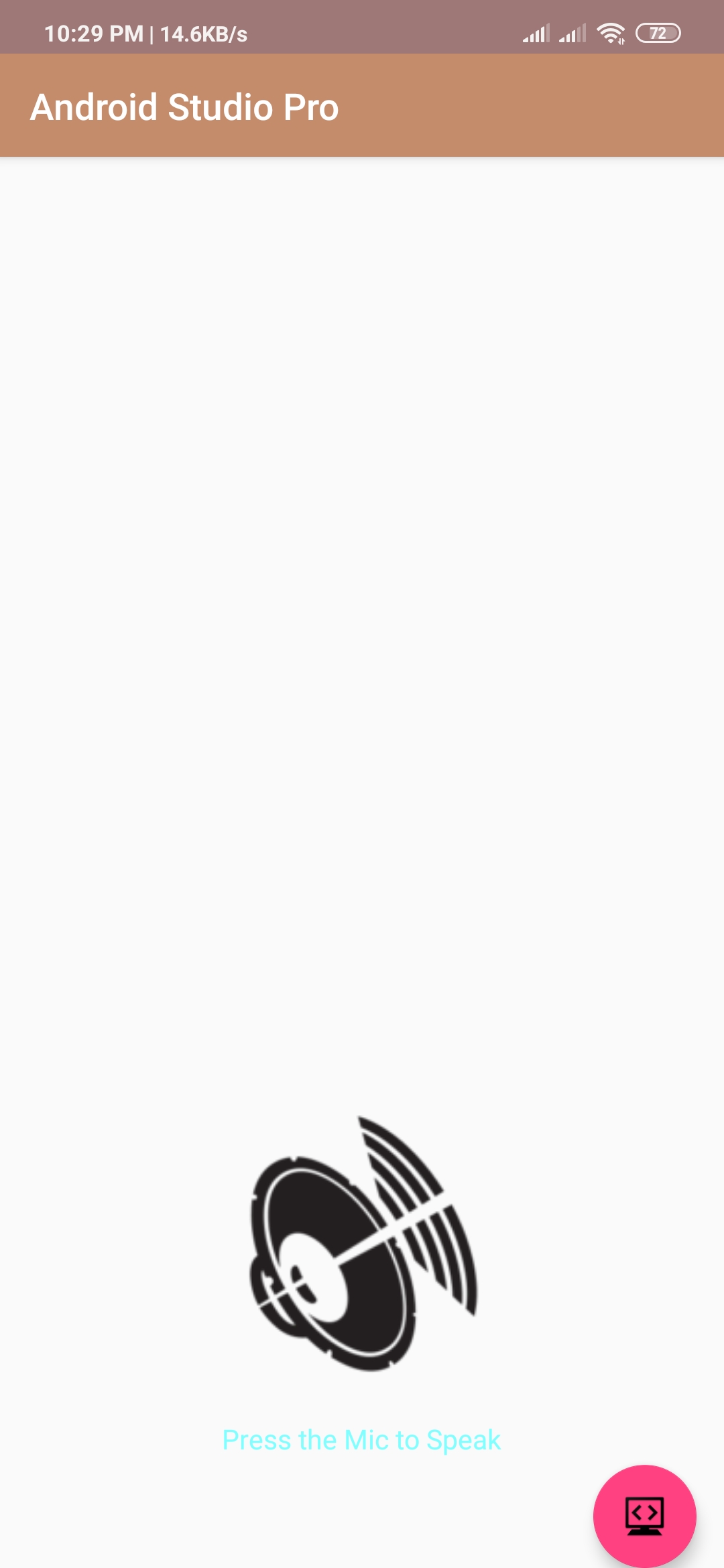
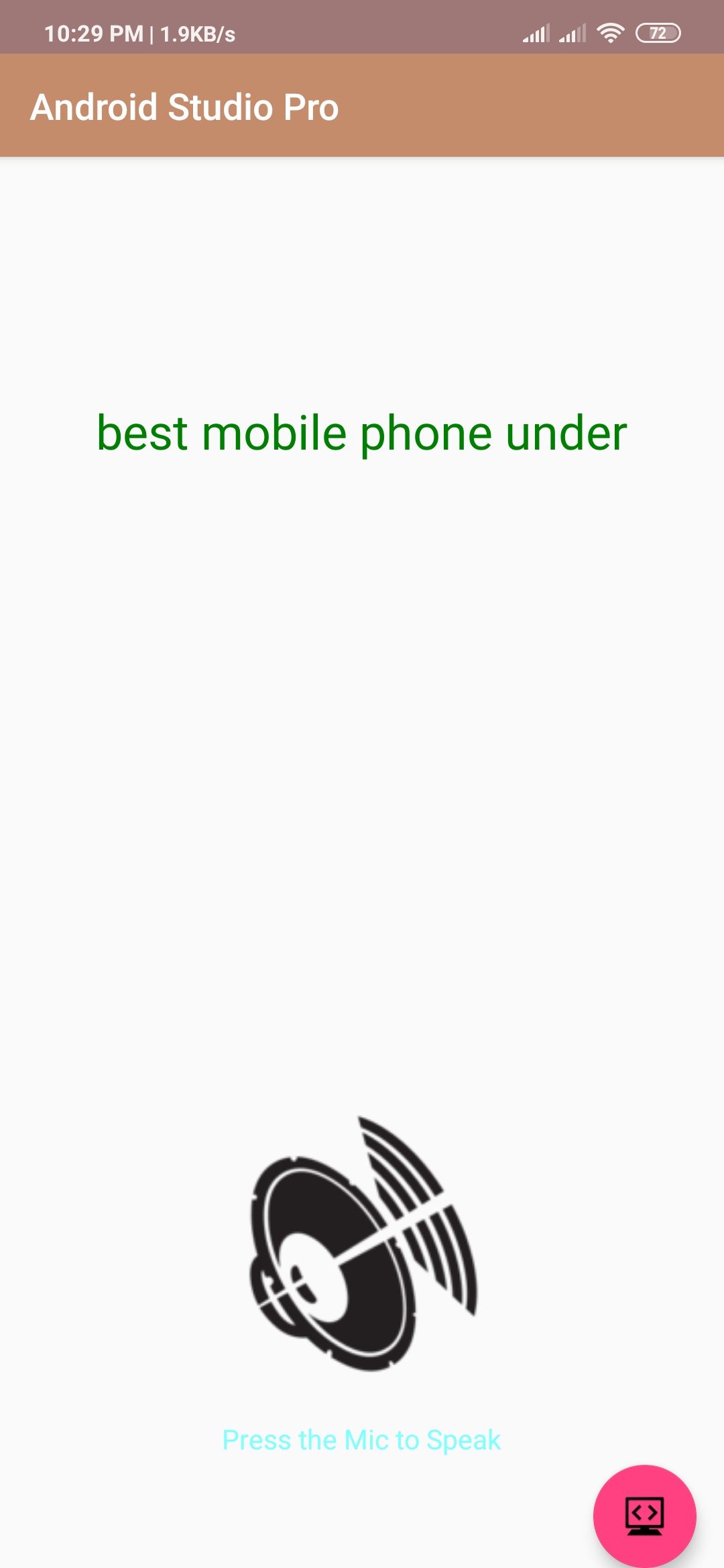
Hello Guys. Welcome to our new tutorial of speech to text in android studio example. almost every android user use this feature. most of the time use commands search on youtube and google. please follow the code given below to use speech to text in android studio.
- First Create a new project in Android Studio
- File ⇒ New Android ⇒ Application Project
- Then Open src -> package -> MainActivity.java and then add following code :
JAVA (MainActivity.java)
import android.content.Intent;
import android.speech.RecognizerIntent;
import android.support.v7.app.AppCompatActivity;
import android.os.Bundle;
import android.view.View;
import android.widget.TextView;
import android.widget.Toast;
import android.content.ActivityNotFoundException;
import android.widget.ImageButton;
import java.util.ArrayList;
import java.util.Locale;


public class SpeechToText extends AppCompatActivity         {

    private TextView speechinput;
    private ImageButton imagebt;
    private final int REQ_CODE_SPEECH_INPUT = 100;

    @Override
    protected void onCreate(Bundle savedInstanceState) {
        super.onCreate(savedInstanceState);
        setContentView(R.layout.activity_speech_to_text);

        speechinput = (TextView) findViewById(R.id.speechinput);
        imagebt = (ImageButton) findViewById(R.id.imagebt);

        imagebt.setOnClickListener(new View.OnClickListener() {
            @Override
            public void onClick(View v) {
                Intent intent = new Intent(RecognizerIntent.ACTION_RECOGNIZE_SPEECH);
                intent.putExtra(RecognizerIntent.EXTRA_LANGUAGE_MODEL, RecognizerIntent.LANGUAGE_MODEL_FREE_FORM);
                intent.putExtra(RecognizerIntent.EXTRA_LANGUAGE, Locale.getDefault());
                intent.putExtra(RecognizerIntent.EXTRA_PROMPT, "Say something");
                try {
                    startActivityForResult(intent, REQ_CODE_SPEECH_INPUT);
                } catch (ActivityNotFoundException a) {
                    Toast.makeText(getApplicationContext(), "Sorry! Your device doesn\\'t support speech input",
                            Toast.LENGTH_SHORT).show();
                }
            }
        });
    }

    @Override
    protected void onActivityResult(int requestCode, int resultCode, Intent data) {
        super.onActivityResult(requestCode, resultCode, data);
        switch (requestCode) {
            case REQ_CODE_SPEECH_INPUT: {
                if (resultCode == RESULT_OK && null != data) {

                    ArrayList<String> result = data
                            .getStringArrayListExtra(RecognizerIntent.EXTRA_RESULTS);
                    String speechText = speechinput.getText().toString() + "\n" + result.get(0);
                    speechinput.setText(speechText);
                }
                break;
            }
        }
    }
}
- Now Open res -> layout -> activity_main.xml and then add following code :
XML (activity_main.xml)
<RelativeLayout xmlns:android="http://schemas.android.com/apk/res/android"
    android:layout_width="match_parent"
    android:layout_height="match_parent"
    android:orientation="vertical" >


    <TextView
        android:id="@+id/speechinput"
        android:layout_width="wrap_content"
        android:layout_height="wrap_content"
        android:layout_alignParentTop="true"
        android:layout_centerHorizontal="true"
        android:layout_marginTop="100dp"
        android:textColor="#008000"
        android:textSize="26dp"
        android:textStyle="normal" />

    <LinearLayout
        android:layout_width="wrap_content"
        android:layout_height="wrap_content"
        android:layout_alignParentBottom="true"
        android:layout_centerHorizontal="true"
        android:layout_marginBottom="60dp"
        android:gravity="center"
        android:orientation="vertical">

        <ImageButton
            android:id="@+id/imagebt"
            android:layout_width="wrap_content"
            android:layout_height="wrap_content"
            android:background="@null"
            android:src="@drawable/speaker" />


        <TextView
            android:layout_width="wrap_content"
            android:layout_height="wrap_content"
            android:layout_marginTop="10dp"
            android:text="Press the Mic to Speak"
            android:textColor="#7FFFFF"
            android:textSize="15dp"
            android:textStyle="normal" />
    </LinearLayout>

</RelativeLayout>
Output:
Finally, run this project.
This is how speech to text looks like.