how to create time picker in android studio example
Hello Guys. Welcome to our new tutorial time picker in android studio example.DatePicker pops up when the user clicks on the EditText field. please follow the code given below to create a time picker in android studio example.
- First Create a new project in Android Studio
- File ⇒ New Android ⇒ Application Project
- Then Open src -> package -> MainActivity.java and then add following code :
JAVA (MainActivity.java)
import android.app.TimePickerDialog;
import android.support.v7.app.AppCompatActivity;
import android.os.Bundle;
import android.view.View;
import android.widget.EditText;
import android.widget.TimePicker;

import java.sql.Time;
import java.util.Calendar;

public class Timepicker extends AppCompatActivity {

    EditText choose;
    TimePickerDialog PickerDialog;
    Calendar calendar;
    int currentHour;
    int currentMinute;
    String amPm;

    @Override
    protected void onCreate(Bundle savedInstanceState) {
        super.onCreate(savedInstanceState);
        setContentView(R.layout.activity_timepicker);


        choose = findViewById(R.id.time);
        choose.setOnClickListener(new View.OnClickListener() {
            @Override
            public void onClick(View view) {
                calendar = Calendar.getInstance();
                currentHour = calendar.get(Calendar.HOUR_OF_DAY);
                currentMinute = calendar.get(Calendar.MINUTE);

                PickerDialog = new TimePickerDialog(Timepicker.this, new TimePickerDialog.OnTimeSetListener() {
                    @Override
                    public void onTimeSet(TimePicker timePicker, int hourOfDay, int minutes) {
                        if (hourOfDay >= 12) {
                            amPm = "PM";
                        } else {
                            amPm = "AM";
                        }
                        choose.setText(String.format("%02d:%02d", hourOfDay, minutes) + amPm);
                    }
                }, currentHour, currentMinute, false);

                PickerDialog.show();
            }
        });
    }
}
- Now Open res -> layout -> activity_main.xml and then add following code :
XML (activity_main.xml)
<android.support.constraint.ConstraintLayout
    xmlns:android="http://schemas.android.com/apk/res/android"
    xmlns:app="http://schemas.android.com/apk/res-auto"
    xmlns:tools="http://schemas.android.com/tools"
    android:layout_width="match_parent"
    android:layout_height="match_parent"
    tools:context=".Timepicker">

    <EditText
        android:id="@+id/time"
        android:layout_width="match_parent"
        android:layout_height="wrap_content"
        android:layout_centerHorizontal="true"
        android:layout_centerVertical="true"
        android:layout_marginTop="24dp"
        android:hint="Choose the time"
        app:layout_constraintEnd_toEndOf="parent"
        app:layout_constraintStart_toStartOf="parent"
        app:layout_constraintTop_toTopOf="parent" />

</android.support.constraint.ConstraintLayout>
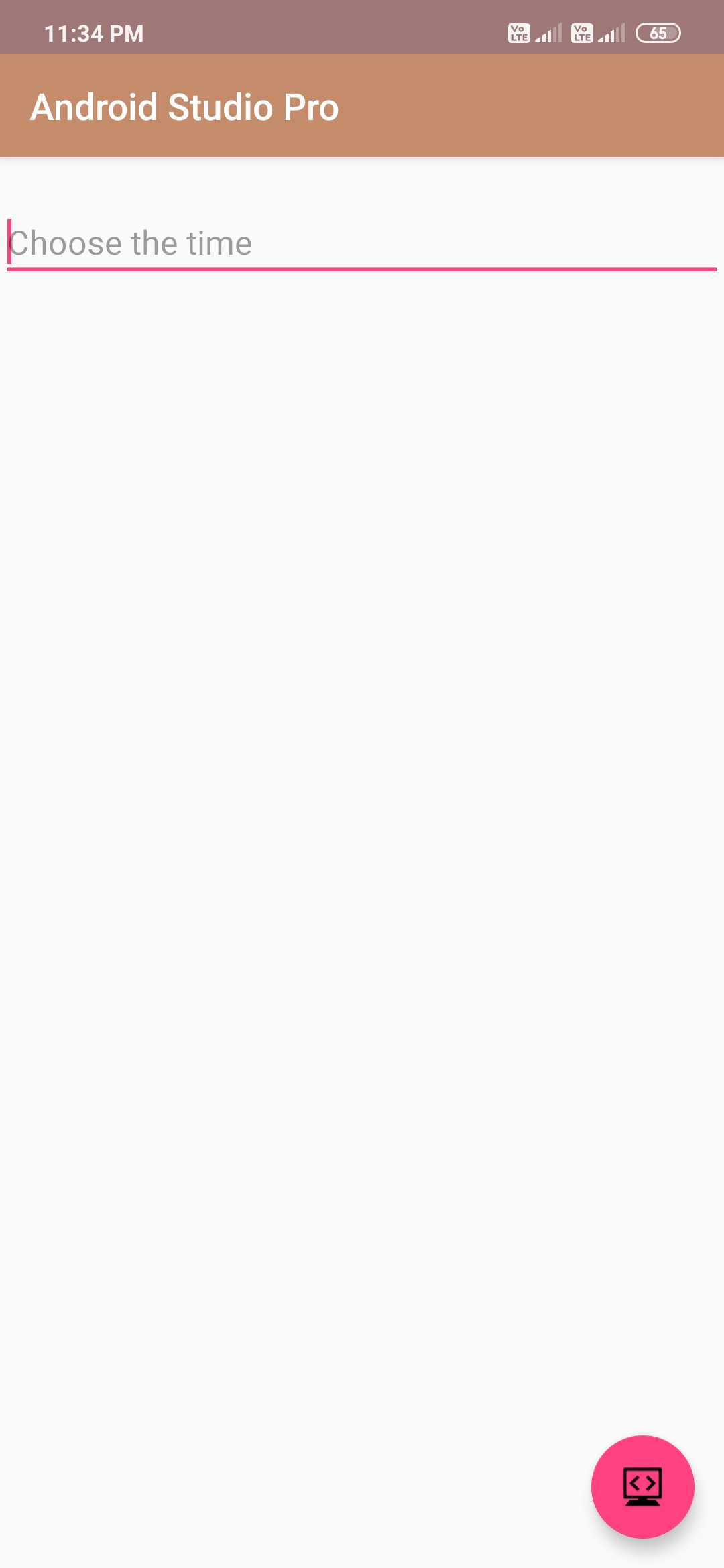
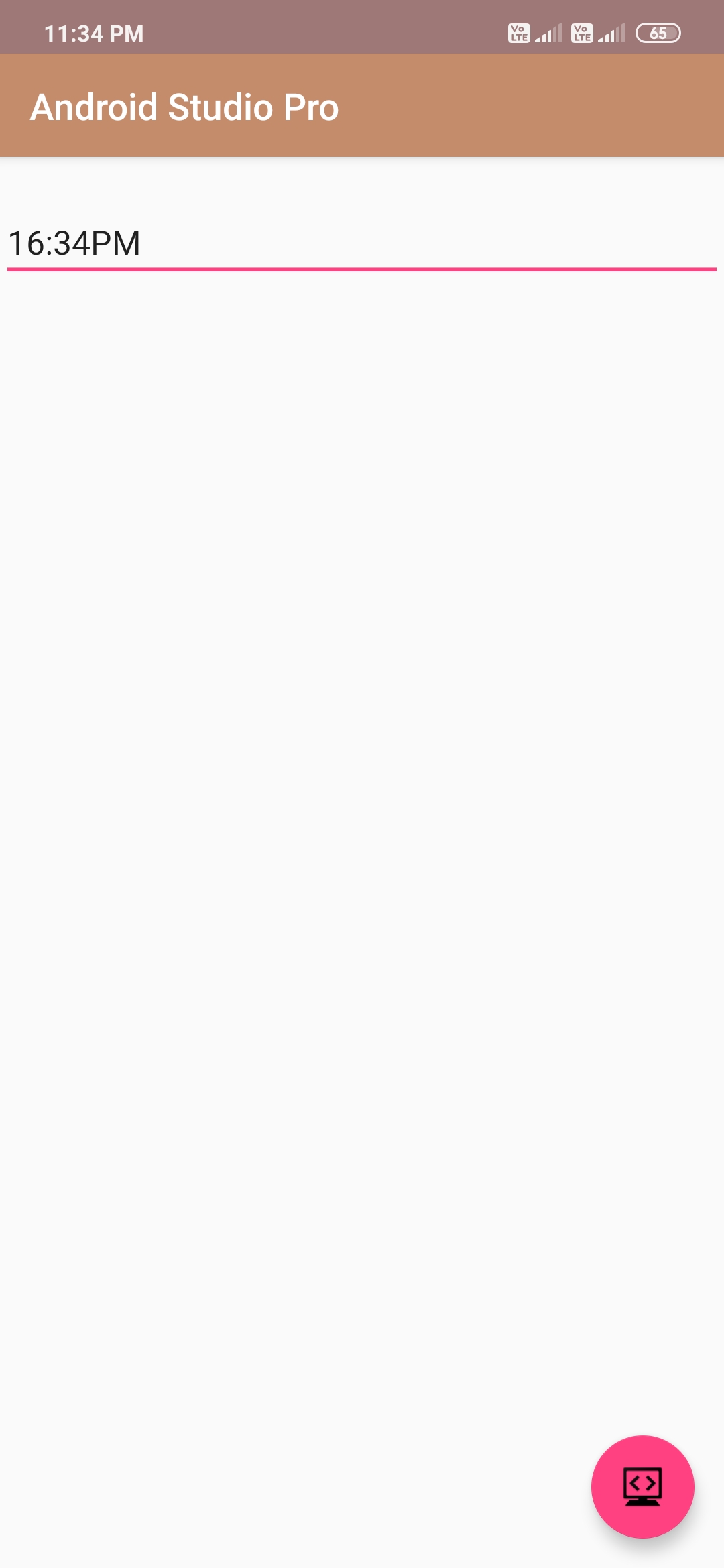
Output:
Finally, run this project.
This is how android time picker look like.