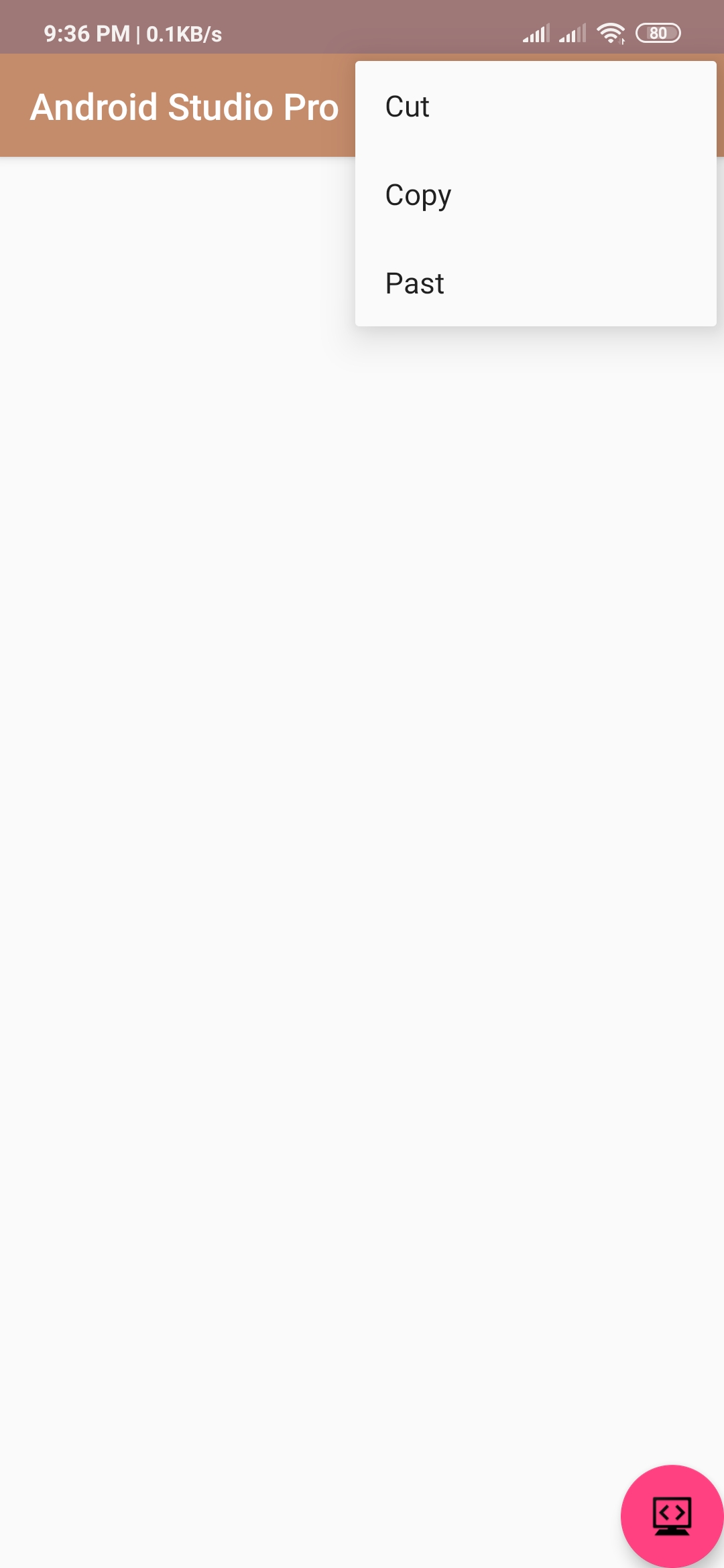
how to create option menu in android studio
Hello Guys. Welcome to our new tutorial of how to create option menu in android studio. option menu are the primary menu of android. mainly use this option for search, delete , setting, etc.
please follow the code given below to display Analog clock and Digital clock in android.
- First Create a new project in Android Studio
- File ⇒ New Android ⇒ Application Project
- Then Open src -> package -> MainActivity.java and then add following code :
JAVA (MainActivity.java)
import android.support.v7.app.AppCompatActivity;
import android.os.Bundle;
import android.view.Menu;
import android.view.MenuItem;
import android.widget.Toast;


public class OptionsMenu extends AppCompatActivity {


    @Override
    protected void onCreate(Bundle savedInstanceState) {
        super.onCreate(savedInstanceState);
        setContentView(R.layout.activity_options_menu);

           }
    @Override
    public boolean onCreateOptionsMenu(Menu menu) {
        getMenuInflater().inflate(R.menu.options_menu, menu);
        return true;
    }
    @Override
    public boolean onOptionsItemSelected(MenuItem item) {
        Toast.makeText(this, "Selected Item: " +item.getTitle(), Toast.LENGTH_SHORT).show();
        switch (item.getItemId()) {
            case R.id.search_item:
                // do your code
                return true;

            case R.id.copy_item:
                // do your code
                return true;
            case R.id.print_item:
                // do your code
                return true;

            default:
                return super.onOptionsItemSelected(item);
        }
    }
}
- Now Open res -> layout -> activity_main.xml and then add following code :
XML (activity_main.xml)
<android.support.constraint.ConstraintLayout xmlns:android="http://schemas.android.com/apk/res/android"
    xmlns:app="http://schemas.android.com/apk/res-auto"
    xmlns:tools="http://schemas.android.com/tools"
    android:layout_width="match_parent"
    android:layout_height="match_parent"
    tools:context=".OptionsMenu">


</android.support.constraint.ConstraintLayout>
Output:
Finally, run this project.
This is how the option menu look like.

