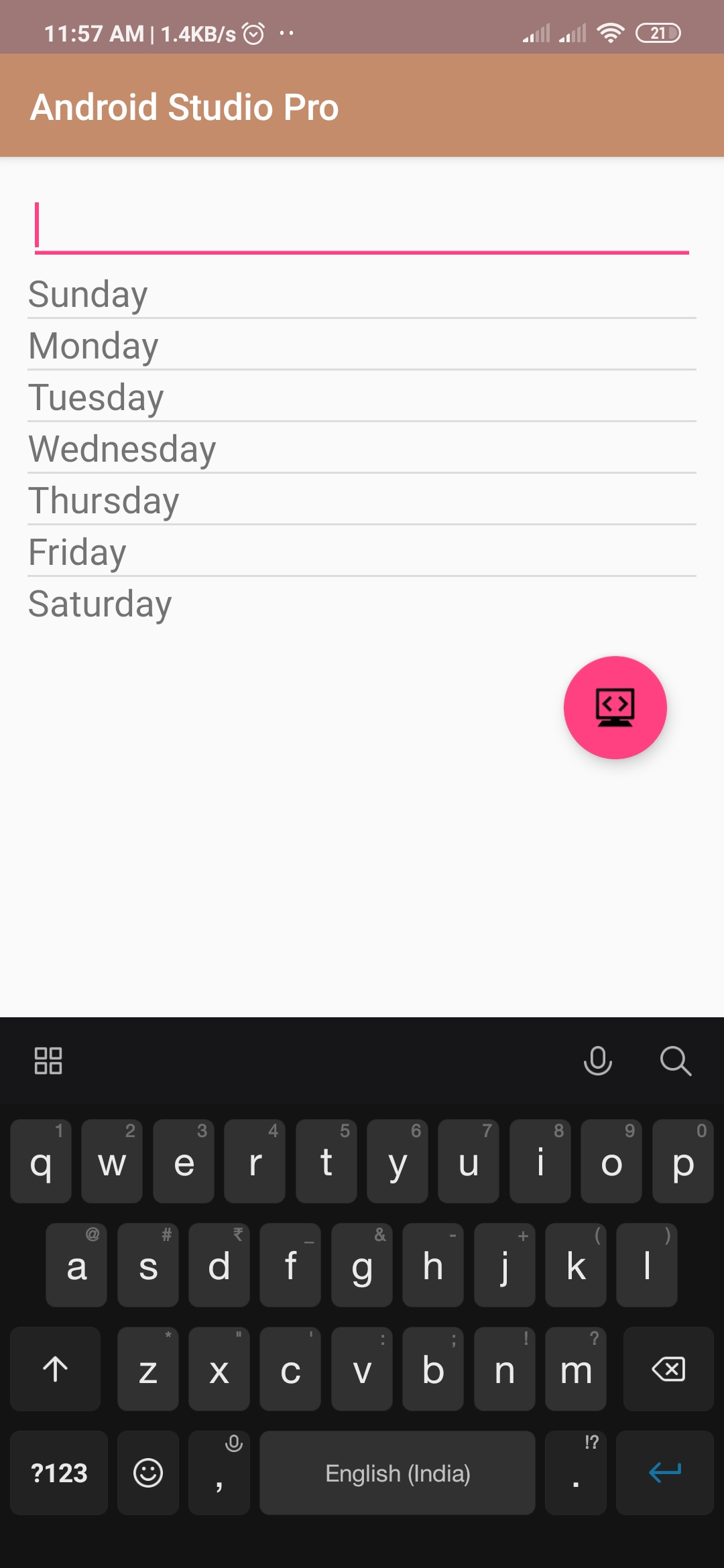
how to use searchview in android
Hello Guys. Welcome to our new tutorial of how to use searchview in android using android studio. Here we will teach you search function in android studio. search view will help you to search any item, option, function in the android. please follow the code given below to use the search view in android using android studio. the most popular widget that helps you to enter a search query. also, submit a request to a search provider. this widget can be implemented over Actionbar/toolbar or inside a layout.
- First Create a new project in Android Studio
- File ⇒ New Android ⇒ Application Project
- Then Open src -> package -> MainActivity.java and then add following code :
JAVA (MainActivity.java)
import android.support.v7.app.AppCompatActivity;
import android.os.Bundle;
import android.text.Editable;
import android.text.TextWatcher;
import android.widget.ArrayAdapter;
import android.widget.EditText;
import android.widget.ListView;
import android.widget.TextView;


public class Searchfunction extends AppCompatActivity {

    EditText textBox;
    TextView text;
    ListView list;
    String week[]={"Sunday","Monday","Tuesday","Wednesday","Thursday","Friday","Saturday"};
    ArrayAdapter adapter;

    @Override
    protected void onCreate(Bundle savedInstanceState) {
        super.onCreate(savedInstanceState);
        setContentView(R.layout.activity_searchfunction);

        textBox=(EditText)findViewById(R.id.textBox);
        text=(TextView)findViewById(R.id.text);
        list=(ListView)findViewById(R.id.list);
        adapter=new ArrayAdapter(this,R.layout.list_item,R.id.text,week);
        list.setAdapter(adapter);


        textBox.addTextChangedListener(new TextWatcher() {
            @Override
            public void beforeTextChanged(CharSequence s, int start, int count, int after) {
                adapter.getFilter().filter(s);
            }
            @Override
            public void onTextChanged(CharSequence s, int start, int before, int count) {
            }
            @Override
            public void afterTextChanged(Editable s) {

            }
        });
    }
}
- Now Open res -> layout -> activity_main.xml and then add following code :
XML (activity_main.xml)
<LinearLayout
    xmlns:android="http://schemas.android.com/apk/res/android"
    xmlns:tools="http://schemas.android.com/tools"
    android:layout_width="match_parent"
    android:layout_height="match_parent"
    tools:context=".MainActivity"
    android:orientation="vertical"
    android:layout_marginLeft="15dp"
    android:layout_marginRight="15dp"
    android:layout_marginTop="15dp"
    android:layout_marginBottom="15dp">

    <EditText
        android:layout_width="match_parent"
        android:layout_height="wrap_content"
        android:id="@+id/textBox"/>

    <ListView
        android:layout_width="match_parent"
        android:layout_height="wrap_content"
        android:id="@+id/list"/>

</LinearLayout>
Output:
Finally, run this project.
This is how the search function looks like.
